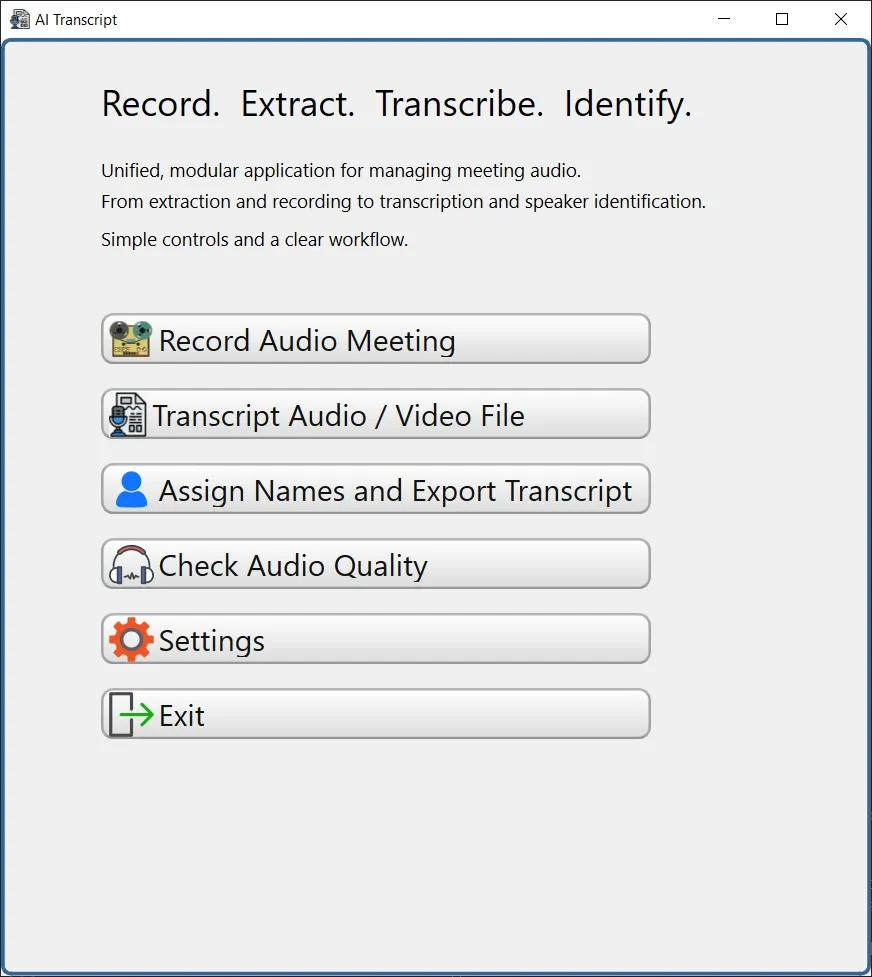
This page provides a quick overview of the five main functions available
in Ai Transcript.
Each numbered section below corresponds with elements shown
in the image.
1. Record Audio Meeting
Use this option for face-to-face meetings when your computer or notebook microphone is available.
How to use
- Select the desired audio input device
- Click Save audio file– the recording will be saved into the default folder:
Documents\Transcript (You can change this folder in Settings) - Click Start to begin recording
- Click Stop to finish
- Use Play / Stop to listen and check recording quality
Tip: Always verify audio quality before leaving the meeting.
2. Transcript Audio / Video File
Use this to upload and transcribe audio and video files. Ai Transcript supports file types from major meeting platforms such as Zoom, Teams, and Google Meet.
Important Notes
- Because your computer uses limited memory and no GPU, transcription may take longer
- You may close Ai Transcript while transcription continues in the background
- You will receive an email notification (start and finish) if an Email address is configured in Settings
- If you exit the menu or app, returning will show the current transcript progress. You can allow it to finish OR terminate it
Steps
- Select language
- Select audio or video file
- Files are saved in the selected Transcript Folder
- Click Generate Transcript
3. Assign Names and Export Transcript
After transcription, speakers are shown with generic labels such as Speaker 1, Speaker 2, etc.
Steps
- Load an existing Transcript File
- Replace generic speaker names with real names
- Assign color and style for each speaker for better visibility. Very useful for long transcripts or many speakers
Export to one of several formats:
- Word
- Excel
- HTML
- Power BI
Important:
When sending HTML transcripts to other people, always include the associated audio
file, so they can click and listen to audio excerpts.
4. Check Audio Quality
Transcript accuracy depends heavily on audio quality.
How to use
- Upload an audio file
- Ai Transcript will display a Quality Index (%)
- Higher = clearer audio
- Low scores indicate noise or clipping
5. Settings
Modify essential application preferences.
Options
- Change Transcript Folder
- Add an Email address for automatic background transcript notifications
6. Exit
Close the application.